Tablet Keyboards: Attached Case or Separate Keyboard?
Choose a tablet keyboard around cafe tables, lap use, document work, shortcuts and the full weight of the kit you carry.
This guide draws on published documentation and practical use cases, not hands-on testing. It contains no paid product placements or affiliate shopping links. How we work · Affiliate Disclosure
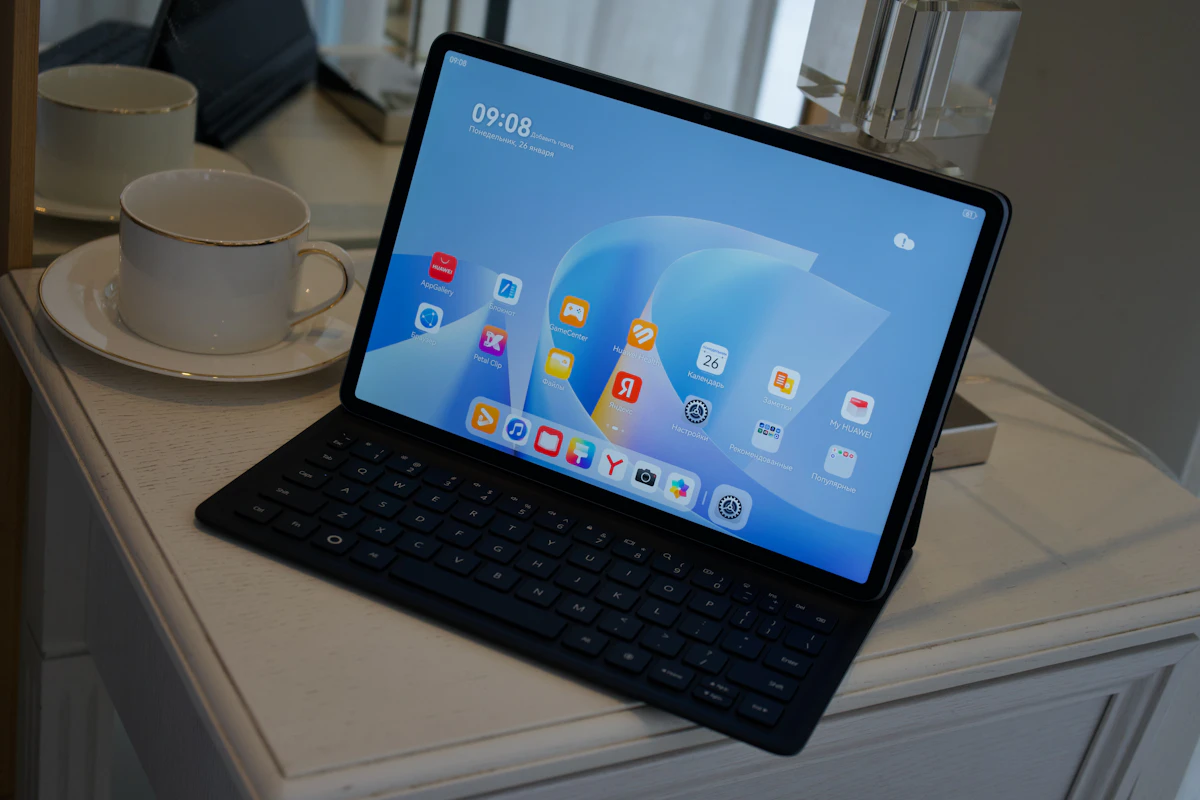
An attached keyboard simplifies setup; a separate keyboard gives you more freedom to position the screen. Confirm exact tablet and software compatibility first.
In this guide
You leave home with a tablet for a short meeting, then spend an hour turning notes into a report at a cafe. Typing on the screen works for the first paragraph. After that, the on-screen keyboard covers too much of the document and the tablet keeps sliding against your cup. A physical keyboard could help, but the right format depends on where that longer writing session happens.
A keyboard case makes the tablet and keyboard travel as one item. A separate keyboard lets you move the screen independently and use a stand that suits the task. The most useful comparison is not which one looks more like a laptop. It is which arrangement makes your actual applications comfortable to use.
Compare the complete working setup
| Arrangement | Useful for | Main tradeoff | Carrying consideration |
|---|---|---|---|
| Attached keyboard with a supporting hinge | Frequent transitions between bag and table | Limited screen positioning and model-specific fit | Count tablet, keyboard and any cover together |
| Keyboard cover with rear kickstand | A supported tablet with enough table depth | Kickstand needs space behind the screen | Protection and keyboard may be separate parts |
| Separate Bluetooth keyboard and stand | Longer sessions with flexible screen placement | More pieces to place and pack | Requires its own power routine |
| Existing desktop keyboard | Occasional tablet work at home | Less convenient to carry | May cost nothing if connection and layout work |
Confirm the exact tablet model
Find the model number and generation in the tablet’s settings. Matching a screen size is insufficient: mounting points, connector positions, camera cutouts and dimensions can differ across generations. A keyboard with a dedicated contact connector needs the specifically supported tablet family.
Bluetooth can avoid a proprietary physical connector, but it does not guarantee every shortcut or trackpad gesture. Check supported operating systems, minimum software versions and the manufacturer’s explanation of special keys. If you switch between tablet and computer, verify how device switching works rather than assuming the keyboard remembers both in the way you expect.
Some contact-connected keyboards take power from the tablet and need no separate pairing or charging. Other attached designs use Bluetooth and have their own battery. Appearance does not tell you which system is inside. Similarly, a USB-C port on a keyboard accessory may provide charging only, rather than additional data connections.
Recreate your smallest workspace
Measure the cafe table or train tray you expect to use, including the area occupied by the tablet’s rear support. A kickstand can extend much farther behind the screen than a product photograph suggests. Leave room for your hands and the cable if charging is part of the routine.
Lap use deserves a separate check. A design that is stable on a broad table may be awkward on a narrow or shifting surface. Do not infer lap stability from hinge style alone; assess the documented arrangement and, when possible, try your normal typing position within the return window.
A separate keyboard is especially useful when you want the tablet in portrait orientation for a document or farther back for reference material. It also gives you more choice over key spacing. The compact versus full-size keyboard guide explains why missing keys can matter more than the advertised width.
Check your three most demanding tasks
Open the applications you actually rely on and list the actions that slow you down. For a report, that might mean selecting text, moving between headings and inserting comments. For a spreadsheet, it may be entering repeated numbers, using function keys and navigating cells without touching the screen.
Check whether those actions have tablet keyboard shortcuts and whether the proposed layout includes the necessary keys. A smaller keyboard may hide useful functions behind combinations. That can be acceptable for occasional work and irritating for repeated tasks. A trackpad can reduce trips to the screen, but its benefits depend on the operating system and app support.
Attaching a keyboard does not turn a tablet application into its desktop equivalent. Confirm file handling, external display behavior and any specialist features before treating the accessory as a replacement for a laptop. If the tablet is mainly a second display or reference screen, a portable monitor may address the underlying need differently.
Plan the weight and charging routine
Compare the complete kit you will carry: tablet, keyboard, stand, protective cover, charger and cables. A thin tablet can become a surprisingly substantial package once every part is included. An attached design may save setup time while a separate keyboard is easier to leave at home on reading-only days.
For a rechargeable keyboard, check the connector and how its battery status is shown. For one using replaceable batteries, consider availability and storage. Include it in your travel charging kit only if it adds a recurring charging requirement. Do not carry an additional cable merely because a socket is present without understanding its purpose.
Who should skip a keyboard case?
Readers, handwritten note-takers and people who type only brief messages may get more value from a simple protective cover. A permanently attached keyboard adds bulk even when folded away. If long writing sessions always happen at one desk, try the keyboard you already own before buying a dedicated travel accessory.
FAQ
Will any Bluetooth keyboard work with every tablet?
Basic typing may work on many supported combinations, but confirm operating system compatibility, layout behavior and special features. Pairing successfully is not the same as supporting every shortcut.
Does a keyboard case protect the entire tablet?
Coverage varies. Inspect the edges, corners, back and screen when closed. A keyboard attachment is not automatically a full protective case.
Is a trackpad necessary?
It is useful for frequent selection and pointer work. For short notes, keyboard shortcuts and occasional screen taps may be sufficient. Choose around the application rather than the accessory’s resemblance to a laptop.
Sources and scope
References checked 2026-10-21. These are editorial workflow assessments, not comparative typing, durability or stability tests.
- Apple: setting up and using a tablet keyboard documents model compatibility, contact-connected operation and a charging-only USB-C port.
- Microsoft: Surface keyboards and Type Covers explains compatibility and connection differences across keyboard families.
Keep exploring

Active vs Passive Styluses: Choose for Notes, Drawing or Simple Taps
Understand screen compatibility, palm rejection, pressure support and replacement tips before choosing a stylus for your tablet.
Read the guide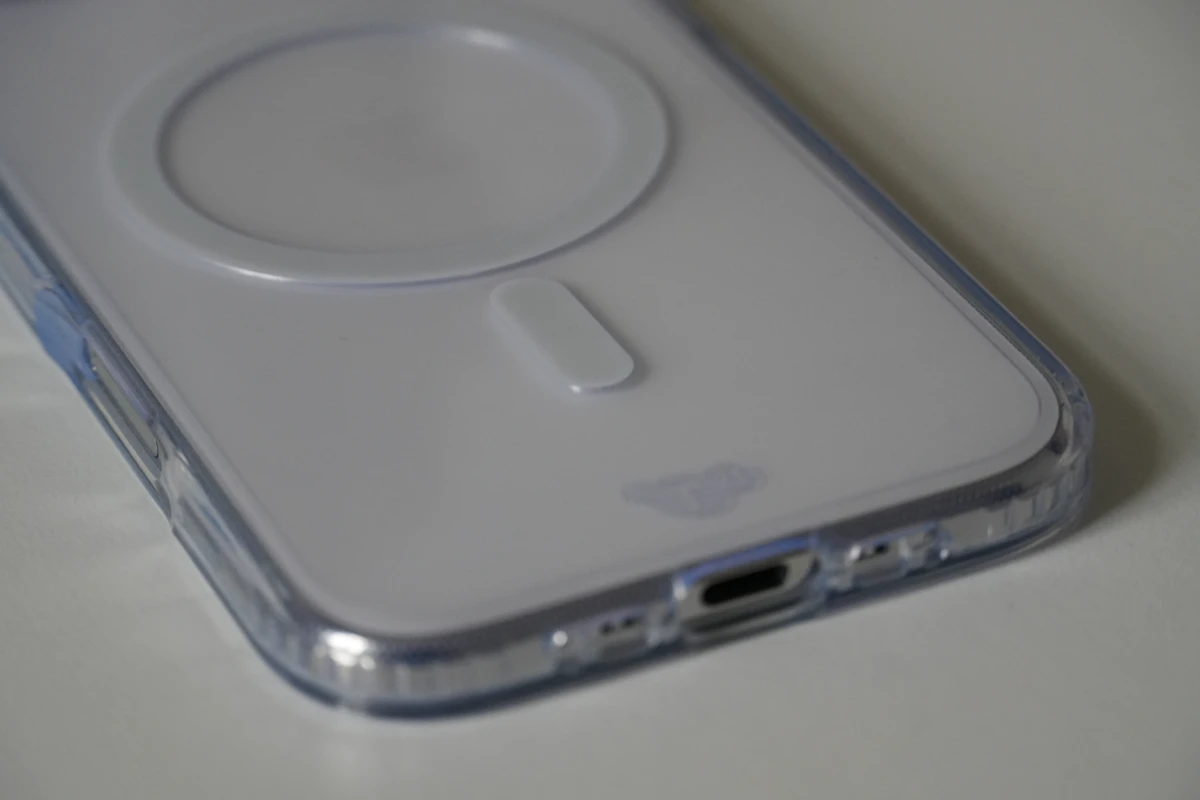
Slim, Rugged, or Wallet Phone Case: Comparing Daily Tradeoffs
Compare phone-case layouts by grip, pocket fit, control access, magnetic accessories, charging compatibility, and realistic protection expectations.
Read the guide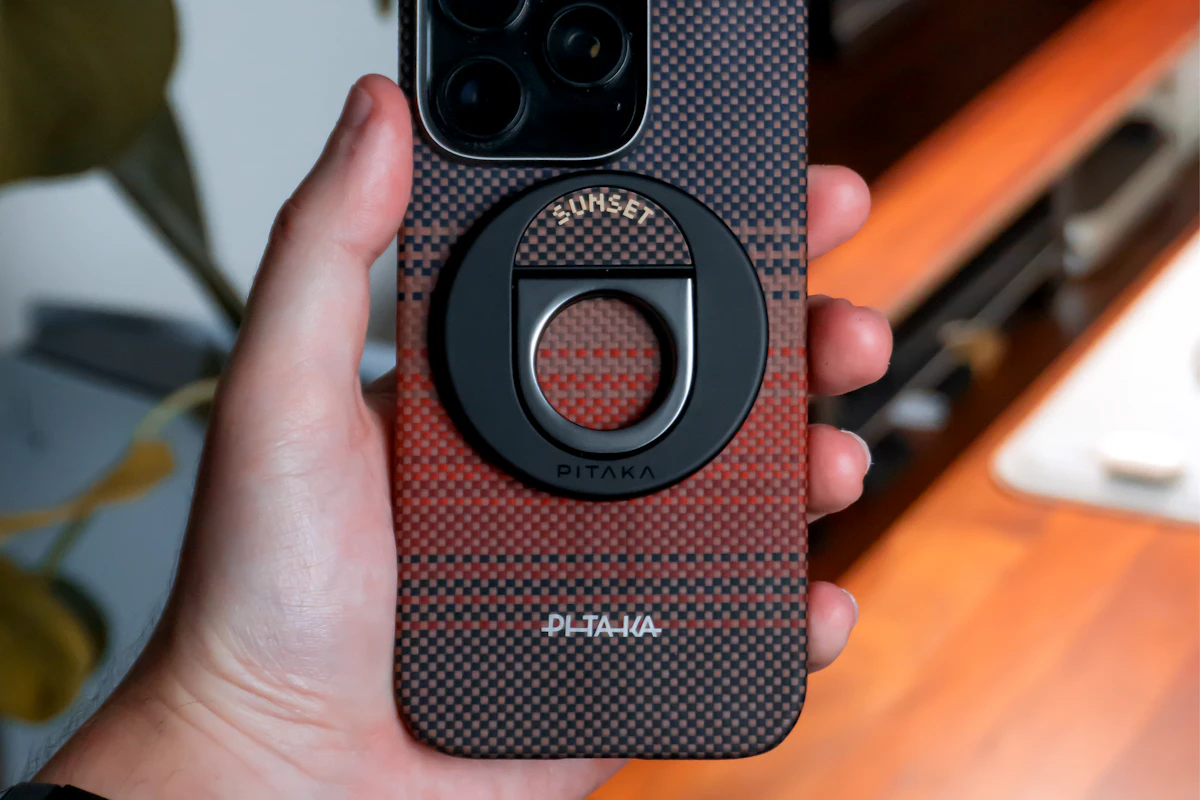
Phone Grips and Stands: Match Your Pocket, Desk and Charger
Compare adhesive grips, removable magnetic supports and separate stands for holding, viewing and charging a phone throughout the day.
Read the guide