Compact vs. Full-Size Keyboards: Count Your Shortcuts Before the Keys
Compare compact and full-size keyboard layouts for number entry, navigation, mouse space, travel, shared desks, and the hidden cost of function layers.
This guide draws on published documentation and practical use cases, not hands-on testing. It contains no paid product placements or affiliate shopping links. How we work · Affiliate Disclosure
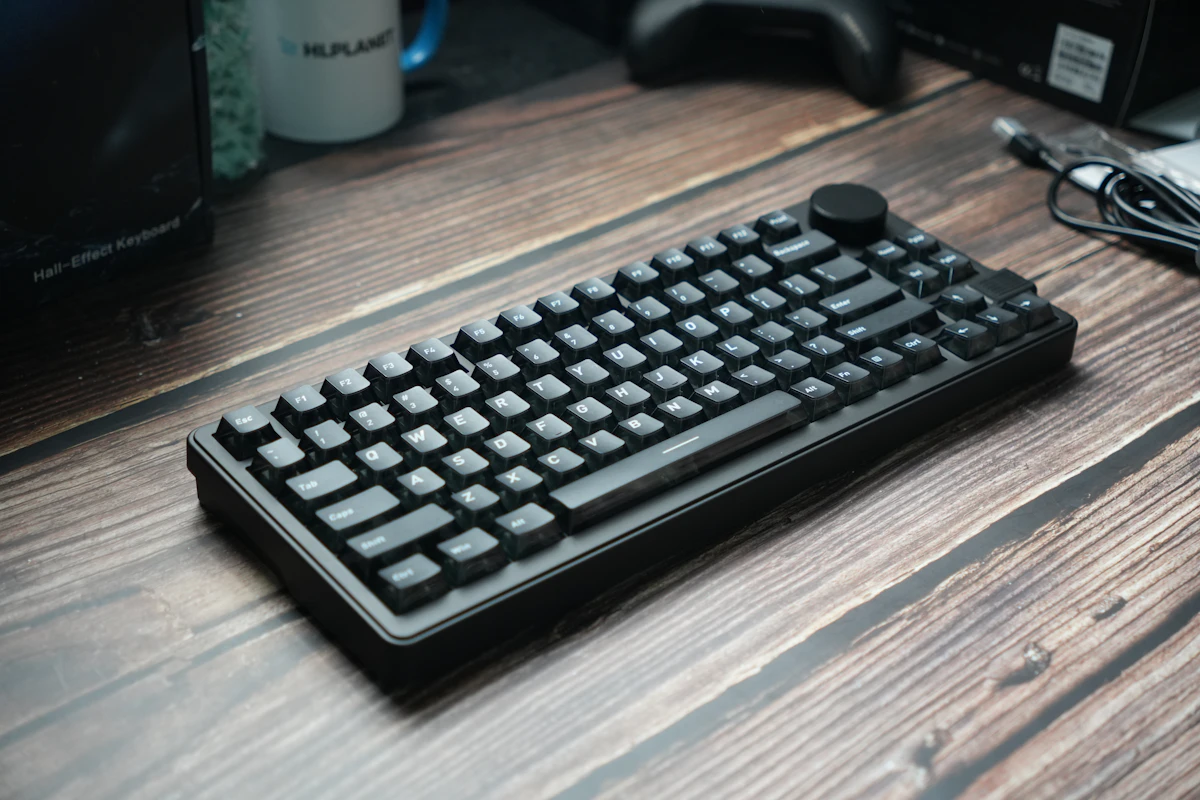
Choose the smallest layout that preserves the keys you regularly reach for; a separate number pad can help when number entry is occasional rather than constant.
In this guide
You spend most of the day writing, then open a spreadsheet and enter a page of numbers. A compact keyboard leaves more room for the mouse, but its number row suddenly feels less convenient than the familiar pad on the right. Someone else has the opposite experience: a full-size keyboard occupies valuable space for a number pad they touch twice a month.
Our preference is to choose layout from recurring actions rather than appearance. Full-size designs suit frequent dedicated number entry and familiar navigation clusters. Compact designs suit limited desks and people who can retain their important keys without cumbersome shortcuts. There is useful middle ground between those extremes.
“Compact” covers several different compromises
A tenkeyless layout typically removes the number pad while retaining the main typing area, function row, and navigation controls. More condensed layouts may keep arrows but move other keys into a smaller cluster. Very small layouts can place navigation or function keys on layers accessed with another key.
Some compact full-featured designs retain a number pad by reducing spaces between groups. That saves width, but removes the gaps that help your hand locate a cluster without looking. Percentage labels are convenient shorthand rather than a complete description of every key’s location.
Always inspect a clear layout image. Two keyboards described with the same percentage can place Delete, Home, End, or the right-side modifiers differently. Regional layouts also affect key shapes and punctuation positions.
Compare by the work you repeat
| Repeated task | Useful starting layout | Tradeoff to evaluate |
|---|---|---|
| Daily accounting or long numeric entry | Full-size with dedicated number pad | Greater width beside a right-side mouse |
| Writing with frequent navigation shortcuts | Tenkeyless or compact layout retaining needed keys | Some navigation positions may still change |
| Travel between desks | Compact layout with familiar essentials | Layers may slow infrequent but important actions |
| Occasional numeric sessions | Compact keyboard plus separate number pad | Another accessory to place, connect, and store |
| Shared family or office computer | Familiar layout with visible functions | Less opportunity to optimize for one person’s habits |
A separate number pad can be placed only when needed, including on a preferred side. But if you constantly retrieve and reconnect it, the integrated option may be simpler.
Audit your keys for one working day
Make a short list of the keys you use beyond letters and numbers. Include arrows, function keys, Escape, Delete, Home, End, Page Up, Page Down, media controls, and application shortcuts. Pay attention to combinations used during remote desktop sessions or specialist software.
Next, mark which actions happen frequently and which merely need to remain possible. A layered screenshot command may be fine once a week. A layered arrow key used throughout an editing session can be a larger adjustment.
Microsoft’s documentation on Fn and F Lock behavior shows how the same top-row key can switch between standard function commands and alternate actions. Check the exact keyboard’s default, whether it can be changed, and whether that setting persists without a configuration application.
Four steps to narrow the layout
- Measure the usable input area. Include mouse movement and the space occupied by a notebook or other daily tools.
- Compare key maps. Confirm every essential key and the actual combination required to reach it.
- Check operating-system behavior. Look at modifier legends, function defaults, software requirements, and any device-switching controls.
- Consider recovery from mistakes. Ask whether unfamiliar placements might cause accidental presses during routine work, and whether a practical return option exists.
If the desk is crowded mainly because the monitor base occupies the center, changing keyboard size may address only part of the problem. Our monitor arm guide considers that separate placement decision.
Mouse space and typing alignment
A narrower keyboard can bring a right-side mouse closer when the typing area stays centered in front of you. That is a layout advantage, not a guarantee of comfort. Desk height, chair position, grip, and the pointing device still matter.
A full-size keyboard can be centered by its alphanumeric area rather than by the outer edges of the entire enclosure. Otherwise, the number pad may visually pull the typing area to one side. Check the position during real tasks instead of arranging everything only for a symmetrical photograph.
Our ergonomic mouse comparison covers placement and hand fit. Together, these choices should allow both typing and pointer work without repeatedly moving one device out of the other’s way.
Layout is independent of switch feel
Do not assume a compact keyboard is mechanical or a full-size keyboard has a particular key action. Both layouts appear with different mechanisms, heights, and noise characteristics. A familiar layout with an unfamiliar action can still require adjustment, while a familiar action on a heavily condensed layout can change your shortcuts.
Our mechanical-versus-scissor comparison addresses that separate decision. Choose the essential layout first so enthusiasm for a switch does not leave you without the controls your work needs.
Who should skip downsizing?
Keep a full-size keyboard if dedicated numeric entry is frequent and the desk accommodates it comfortably. A small reduction in width may not justify relearning a layout during a busy period.
Skip an extremely compact board if important software relies on keys that become awkward combinations, or if custom mappings require software your work computer does not permit. Conversely, there is little reason to keep a seldom-used number pad permanently in the way when a suitable smaller layout preserves your normal workflow.
Frequently asked questions
Does compact mean the letter keys are smaller?
Not necessarily. Many compact layouts remove keys or spacing around groups while retaining ordinary-sized typing keys. Check the exact dimensions.
Can software restore a missing key?
It may assign the function to another key or combination, but it cannot create a dedicated physical position. Company software restrictions may also matter.
Is a separate number pad always better?
No. It provides placement flexibility but adds another device. Frequent number entry may favor a built-in pad.
Sources and scope
Official references checked 2026-10-21: Microsoft’s Fn and F Lock explanation and Microsoft’s Windows shortcut reference. Layout recommendations are editorial judgments, not measured typing-speed, accuracy, or ergonomic test results.
Keep exploring
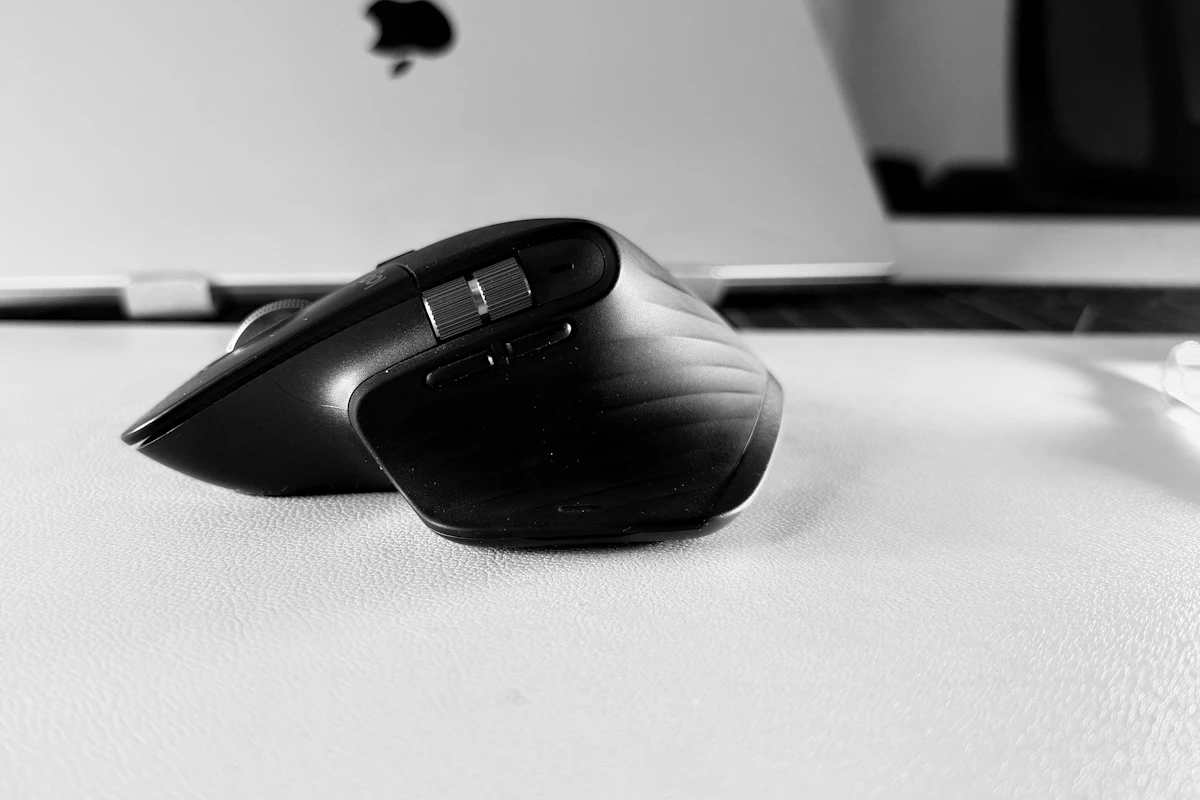
Ergonomic Mice Compared: Vertical, Conventional, or Trackball?
Compare mouse shapes by hand fit, pointer work, desk space, and learning curve, with practical checks that matter more than an ergonomic label.
Read the guide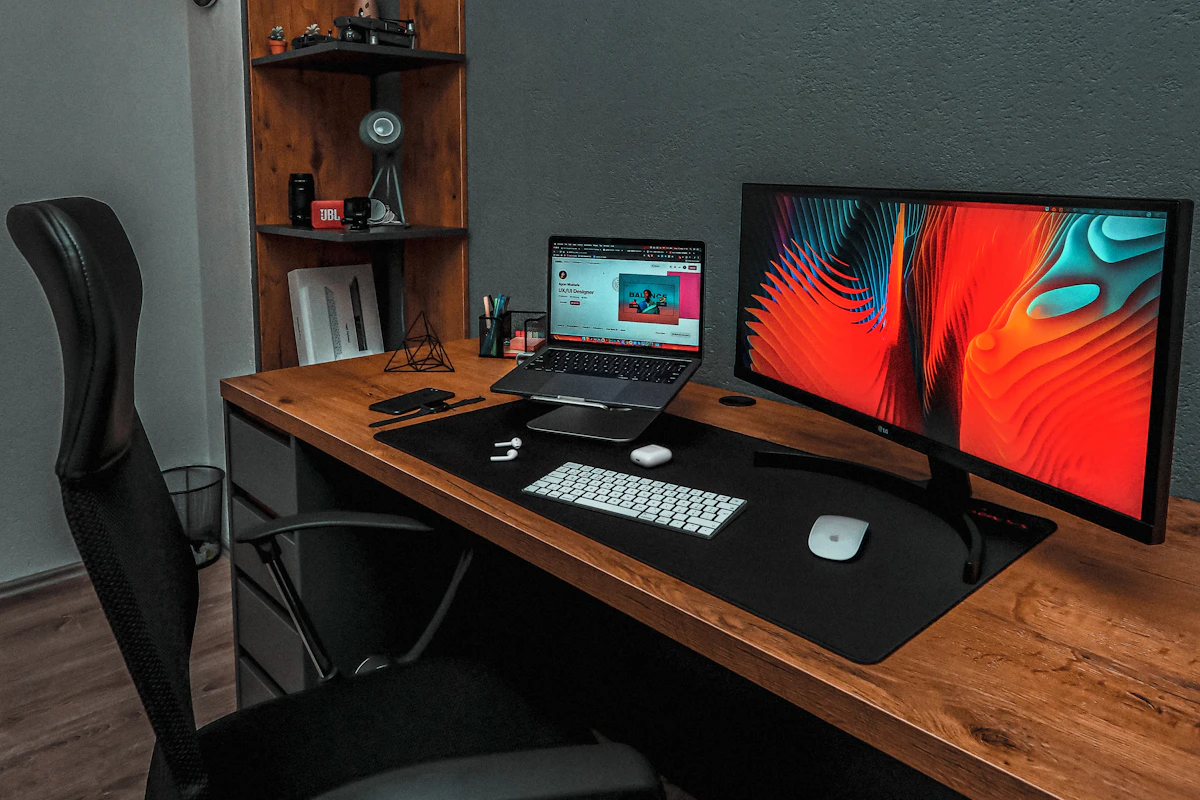
Laptop Docking Stations: When a Permanent Connection Hub Makes Sense
Assess laptop docks for multiple displays, host compatibility, power delivery, shared peripherals, software requirements, and a reliable daily desk connection.
Read the guide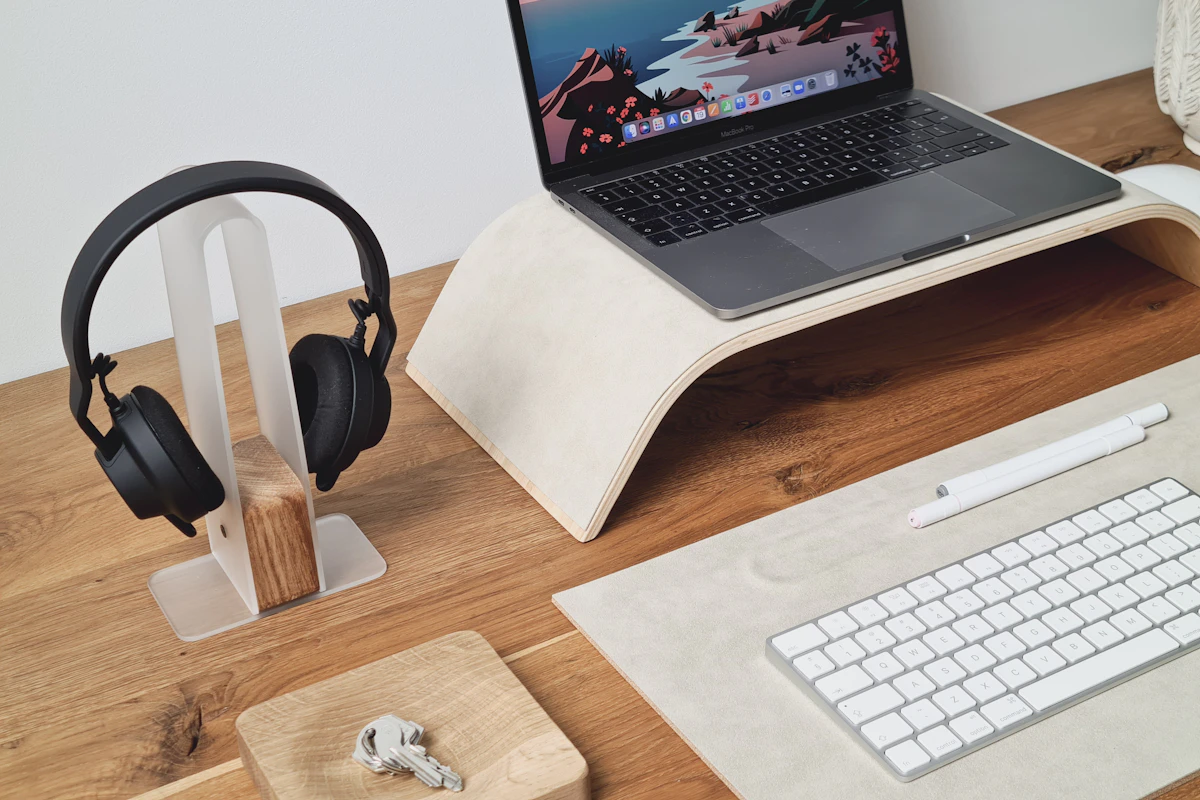
Laptop Stands Compared: Better Screen Placement Without a Crowded Desk
Compare fixed risers, adjustable laptop stands, portable supports, and vertical holders, including stability, ventilation, and external keyboard needs.
Read the guide