Portable SSDs Compared: Capacity, Connection, and Real Workflows
Understand portable SSD interface speeds, host and cable limits, file-system choices, and the difference between working storage and a backup.
This guide draws on published documentation and practical use cases, not hands-on testing. It contains no paid product placements or affiliate shopping links. How we work · Affiliate Disclosure
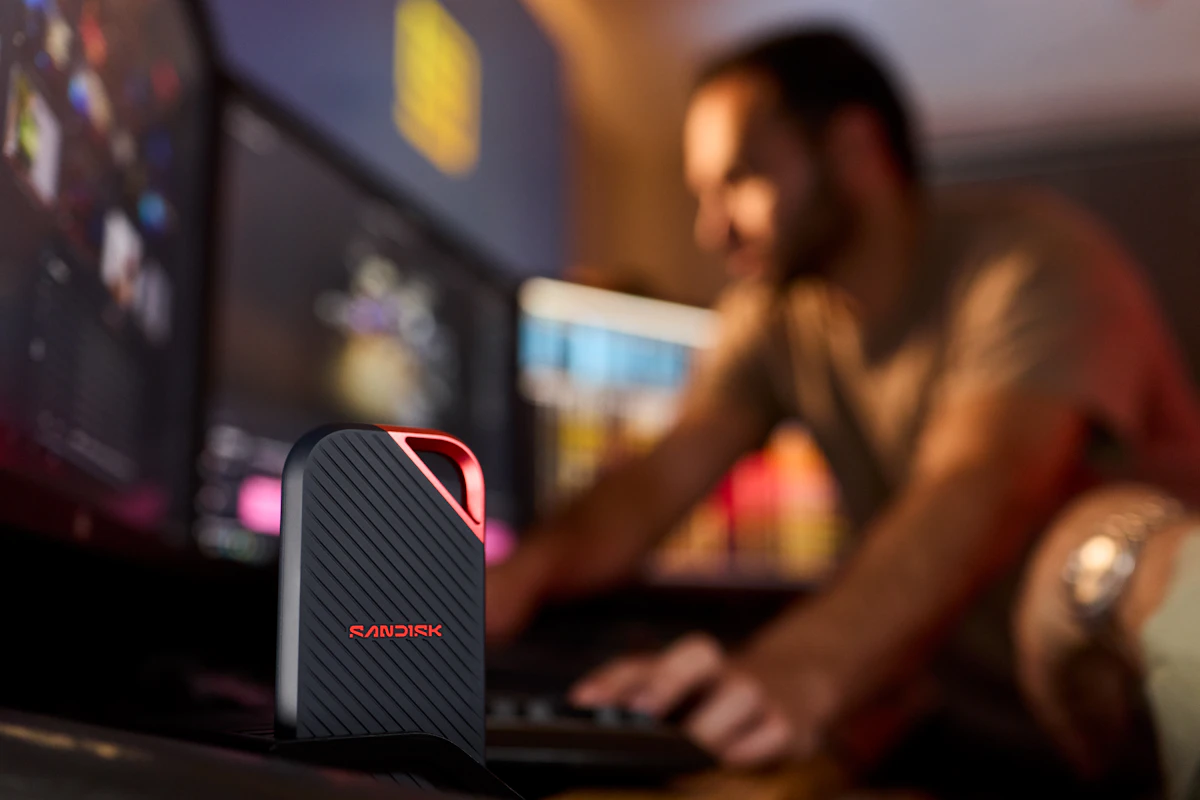
Match the drive to the computer's supported connection and your actual files before paying for a higher advertised transfer rate.
In this guide
A video folder needs to move from one laptop to another before a train leaves. The drive advertises a very high transfer speed, yet the progress bar moves slowly. The drive may be working correctly: the cable, computer port, source storage, or file pattern can limit the transfer.
Portable SSD shopping is therefore a whole-connection decision. This guide compares capacity and interface choices using official specifications. It does not publish benchmark results or treat a manufacturer’s peak speed as a measured GearPlain result.
Read the computer’s specification first
USB-C describes a connector, not one guaranteed data rate. USB-IF identifies data capabilities separately, and its guidance distinguishes rates such as 5, 10, 20, and 40 Gbps. A drive, cable, and host need a mutually supported connection to use the intended capability.
Protocol details matter as well as the number. Do not infer support for every 20 Gbps implementation merely because a computer lists a higher headline rate through another protocol. Check the host’s explicit compatibility and the drive’s requirements. Samsung’s published SSD guidance, for example, ties peak performance to a compatible host configuration and cable.
This check can save money before any brand comparison begins. If the computer cannot use a drive’s faster mode, choose on the basis of capacity, size, support, and the connection that will actually be available.
| Priority | A useful specification focus | What can be overlooked | Sensible comparison |
|---|---|---|---|
| Moving documents and photos | Capacity and compatible connection | Small-file behavior differs from a large-file headline | Time saved in the normal task |
| Large video transfers | Host, cable, and sustained-transfer information | Peak sequential speed is not the entire workflow | Complete source-to-destination path |
| Working across computers | File system and software requirements | Security tools may not work everywhere | Each operating system and app |
| Carrying a work library | Physical size and connector arrangement | Cable strain and loose storage | How the drive sits during use |
| Keeping a backup copy | Backup process and recovery checks | A second storage location is not always a second copy | Ability to restore the required files |
Separate interface rate from file-copy speed
Connection rates are commonly stated in gigabits per second. File-transfer claims are often stated in megabytes per second. They are different units, and protocol overhead means a connection’s theoretical rate is not the same as the throughput of a real file copy.
A large sequential transfer also differs from copying thousands of small files. The source drive, application, file system, and other activity on the computer can influence the outcome. A single headline number should not be used to promise a particular completion time for your folder.
If moving large files is frequent enough to matter, compare published test conditions and credible sustained-workload evidence. For occasional transfers, the premium for a faster class may save little useful time. Our USB-C cable guide helps identify one commonly overlooked part of the connection.
Capacity should reflect the working set
Check the actual size of the files you intend to keep, then allow room for the next projects and routine changes. Avoid guessing entirely from the capacity of the laptop. A computer with a large internal drive might need only a small transfer drive; a compact laptop might work with a large external media library.
Decide whether the SSD is a shuttle between computers, active working storage, or a backup destination. Mixing those roles without a plan can lead to deleting the only remaining copy while making room for a transfer. Give the drive a clear label and folder structure from the beginning.
If the drive hangs from a hub beside a raised laptop, rethink the physical arrangement. Support the drive and allow enough cable slack. Our USB-C hub comparison explains why a hub’s upstream connection also belongs in the performance check.
Choose the file system for the job
Apple documents ExFAT as a Windows-compatible format available in Disk Utility. That can be useful for moving files between systems, but compatibility with an operating system does not settle every application’s requirements. Apple separately recommends APFS for external storage used with certain professional video applications.
Read the requirements for your own software before reformatting. Formatting erases existing data, so keep the needed files elsewhere first. If encryption or password software is involved, confirm that it works on every device that needs access and that you have a recovery plan.
Who should skip a faster SSD?
Skip a speed-tier upgrade if the existing drive is reliable, has enough room, and completes the normal workload comfortably. First check whether a slow cable or connection is the actual limitation.
Do not treat a new SSD as a complete backup plan. If it holds the only copy, it is primary storage. Important files need another recoverable copy and an occasional check that the recovery process works.
Frequently asked questions
Will a faster drive make any USB-C port faster?
No. The connection uses mutually supported capabilities. The host and cable can limit it.
Is the advertised capacity the same as available space?
The displayed usable amount can differ because of formatting and how capacity is represented. Check the space available after setup rather than planning to fill it to the last advertised unit.
Can I edit directly from an external SSD?
Often, but verify your application’s storage and format requirements, the connection, and the workload. Keep a separate recoverable copy of important work.
Sources
USB-IF’s data-rate terminology, USB interface compatibility, Samsung’s published performance conditions, Apple’s file-system guidance, and Apple’s professional-video storage requirements. Sources checked October 21, 2026.
Keep exploring
Ethernet vs. Wi-Fi for a Home Desk: When a Cable Helps
Compare wired and wireless home connections for calls, gaming, file transfers, and everyday work, with a practical way to identify the bottleneck.
Read the guide
Network Switches: Add Wired Ports to a Home Office
Understand port counts, uplinks, unmanaged and managed switches, power needs and the difference between a switch and a router.
Read the guide
SD Card Readers: Build a Reliable Camera-to-Computer Workflow
Match SD and microSD cards to reader slots, supported standards, host connections and a careful photo-import routine.
Read the guide