Network Switches: Add Wired Ports to a Home Office
Understand port counts, uplinks, unmanaged and managed switches, power needs and the difference between a switch and a router.
This guide draws on published documentation and practical use cases, not hands-on testing. It contains no paid product placements or affiliate shopping links. How we work · Affiliate Disclosure
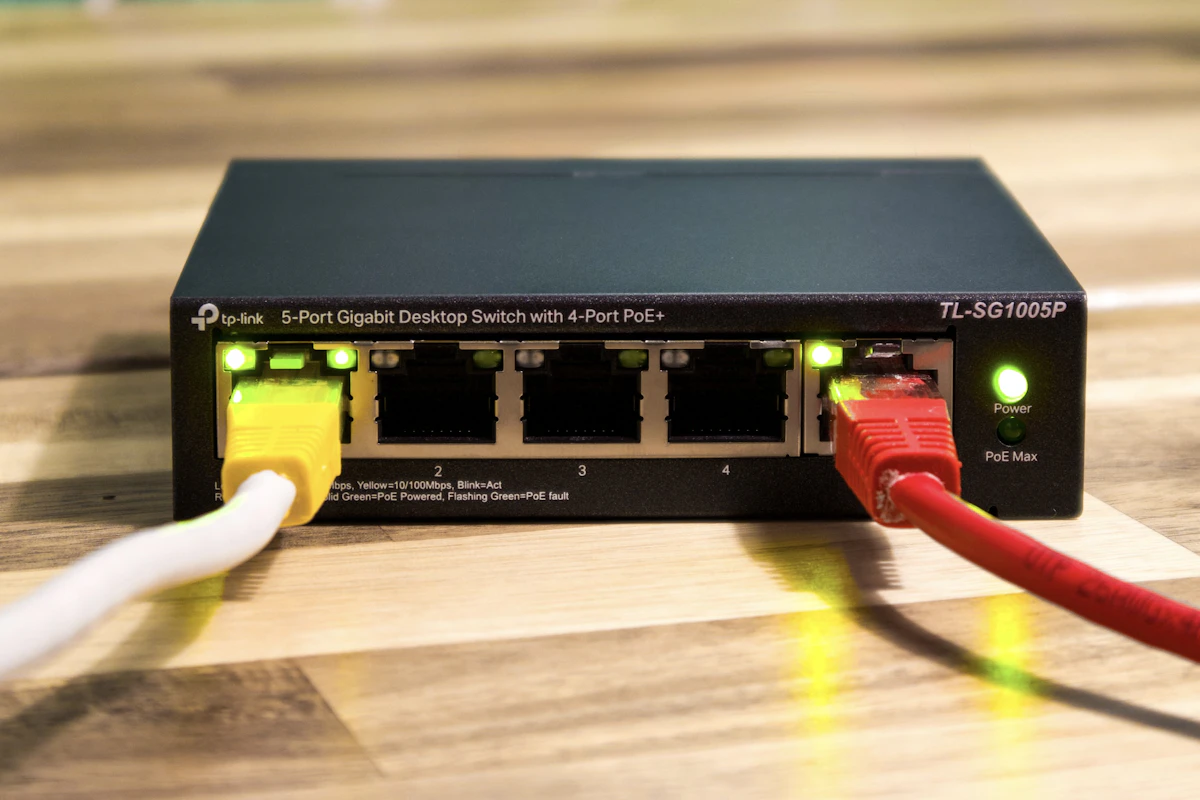
A switch expands connections within your local network. Count the uplink, match port speeds to the devices and choose management features only when you need to configure them.
In this guide
Your spare-room office has one working Ethernet wall socket. The laptop dock uses it during the day, but a desktop computer and network storage device also need a connection. Moving the cable between them works until a file transfer is interrupted. A small network switch can give those devices their own wired ports while sharing the room’s existing connection back to the router.
That is different from replacing the router or creating a wireless network. For a straightforward home office, the useful questions are how many ports you need, what speeds the connected equipment supports, and whether you need any settings beyond ordinary local connectivity.
Compare the switch types
| Type or feature | Useful for | Main responsibility | What it does not automatically provide |
|---|---|---|---|
| Basic unmanaged switch | Adding ports to a simple local network | Connect the correct cables and provide power | Configurable network segmentation |
| Managed or smart-managed switch | A defined need for supported monitoring, VLANs or other controls | Configure and maintain the relevant features | A complete network design by itself |
| Switch with faster Ethernet ports | Compatible computers and storage exchanging substantial local data | Match speeds throughout the required path | Faster internet beyond the service and router limits |
| Power over Ethernet switch | Compatible access points, cameras or other powered devices | Match the power standard and total budget | Power compatibility with every Ethernet device |
Management, speed and power delivery are separate characteristics. A switch can combine them in different ways, so do not treat one label as a complete description.
Draw the path and count the uplink
For the office example, draw router LAN port → wall cable → switch → desk devices. Confirm that the wall socket actually leads to the router’s local network. A basic switch belongs on that local side; it is not generally a replacement for the router that shares and manages the household’s internet connection.
One switch port is normally used for the upstream connection. On a five-port switch, that leaves four ports for desk devices in this simple arrangement. Count the laptop dock, desktop, printer and any planned storage or access point, then allow modest room for growth. A larger switch is useful only if the extra ports fit a plausible need and the physical location.
Do not connect two ordinary cables between the same pieces of network equipment merely to obtain twice the speed. Multiple links require a supported, deliberately configured arrangement; an unintended loop can disrupt the network. Follow the equipment’s documented topology rather than improvising extra paths.
Match speed to the traffic you care about
Each connected device needs a compatible Ethernet interface and cable path. A faster switch does not upgrade a laptop dock’s slower Ethernet port. Review the docking station guide if the dock is part of the connection you are trying to improve.
Distinguish local transfers from internet traffic. A computer copying files to storage on the same switch has a different path from a computer downloading from a remote server. The latter must also traverse the upstream connection, router and internet service. Increasing local port speed cannot remove every limitation along that route.
Devices share the available capacity of an uplink when their traffic needs to pass through it. This does not mean every port permanently receives an equal fraction of that speed; usage varies with simultaneous activity. For ordinary browsing and calls, convenience may be the primary benefit of adding ports. Large repeated transfers justify closer examination of every link and endpoint.
Our Ethernet versus Wi-Fi comparison helps decide which devices are worth wiring in the first place. A switch adds connection options; it does not require moving every portable device onto a cable.
Decide whether you need settings
An unmanaged switch is a sensible starting point when the aim is simply to add devices to the existing local network. A managed switch becomes useful when you can name a feature you need and understand how it fits the rest of the network.
For example, VLAN-based separation requires a coherent configuration across the relevant switch, router and access points. Buying a switch with VLAN support does not independently establish the separation you intend. Monitoring and traffic-control features also depend on the model and configuration. Choose the specific supported functions rather than treating managed as a general quality rating.
If wired connections will support wireless access points or mesh equipment, follow that system’s documented wiring arrangement. Our Wi-Fi mesh guide covers why the links between nodes are part of the network design rather than incidental cables.
Check power, noise and placement
Most simple desk switches need their own power supply. Plan an outlet and leave room for the plug, cable bends and ventilation. A fanless model can avoid fan noise, but check the actual design rather than assuming that every compact enclosure is silent. Position status lights where they are useful without shining directly into your workspace.
Power over Ethernet, or PoE, adds another calculation. Check the powered device’s required standard and power, the switch’s supported per-port output, and the total budget shared across powered devices. A sufficient figure on one port does not establish that all ports can deliver that amount simultaneously. Do not substitute an unspecified passive power arrangement for documented standards compatibility.
Who should skip a new switch?
Skip one if the router already has enough conveniently located ports, if the actual problem is a damaged cable, or if the room needs wireless coverage rather than wired sockets. Avoid advanced configuration features unless you have a use for them and a way to maintain the setup.
FAQ
Will a switch increase my internet plan’s speed?
No. It can remove a local connection limitation or add ports, but the internet service, router and other parts of the route still set limits.
Does a switch create Wi-Fi?
A typical Ethernet switch does not. A separate supported access point or wireless router provides that function.
Do all ports deliver power?
No. Confirm PoE support for the exact ports and the overall power budget. Ordinary Ethernet connectivity does not imply power delivery.
Sources and scope
References checked 2026-10-21. Recommendations are editorial judgments, not network throughput, reliability or power-delivery test results.
- Cisco: how a network switch works distinguishes local switching, routing and router connections.
- Cisco: managed versus unmanaged switches explains configuration differences.
- NETGEAR: surveillance switch guide documents separate PoE port and overall power budgets.
Keep exploring
Ethernet vs. Wi-Fi for a Home Desk: When a Cable Helps
Compare wired and wireless home connections for calls, gaming, file transfers, and everyday work, with a practical way to identify the bottleneck.
Read the guide
Portable SSDs Compared: Capacity, Connection, and Real Workflows
Understand portable SSD interface speeds, host and cable limits, file-system choices, and the difference between working storage and a backup.
Read the guide
SD Card Readers: Build a Reliable Camera-to-Computer Workflow
Match SD and microSD cards to reader slots, supported standards, host connections and a careful photo-import routine.
Read the guide