Ethernet vs. Wi-Fi for a Home Desk: When a Cable Helps
Compare wired and wireless home connections for calls, gaming, file transfers, and everyday work, with a practical way to identify the bottleneck.
This guide draws on published documentation and practical use cases, not hands-on testing. It contains no paid product placements or affiliate shopping links. How we work · Affiliate Disclosure
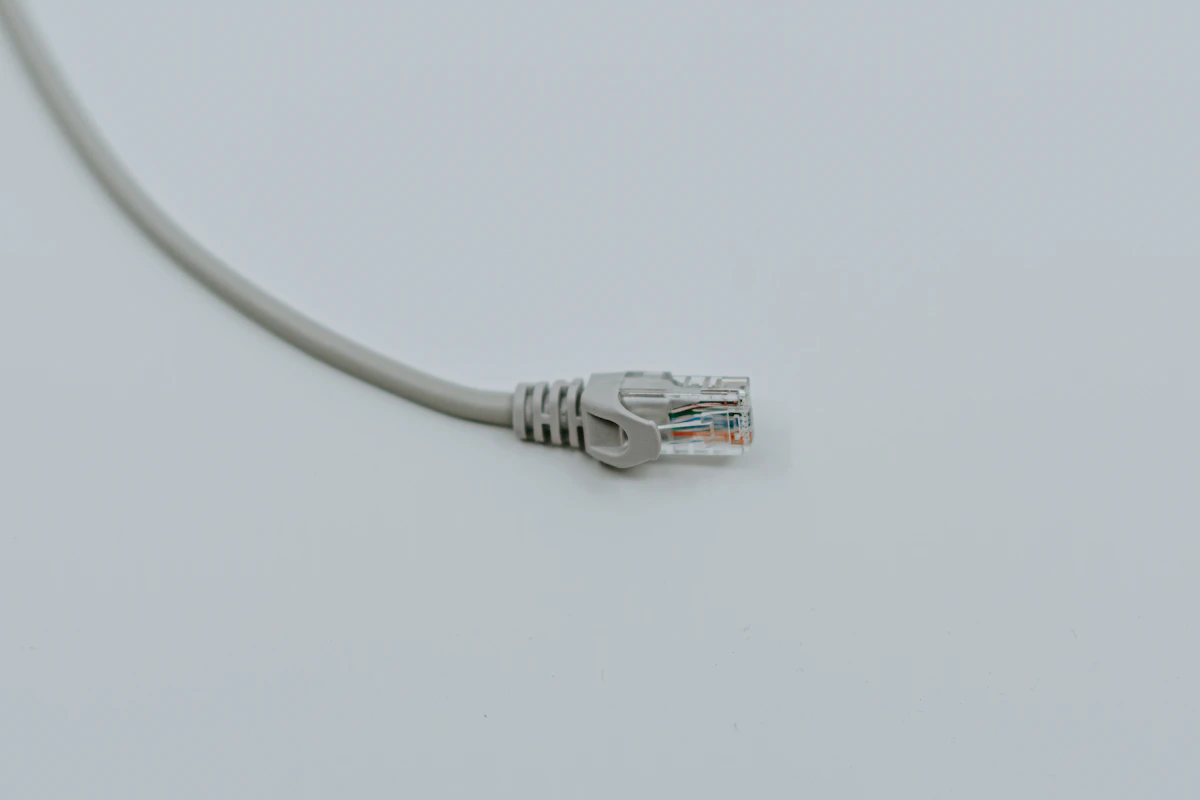
A wired connection can remove the local wireless link from the problem, but it cannot fix every slowdown elsewhere on the network.
In this guide
Your video call freezes while the person in the next room streams a film without difficulty. The laptop shows a connection, and an internet speed test produces a respectable number. It is still unclear whether a cable would help.
Ethernet is most useful to consider when a device stays in one place and the wireless connection is inconsistent. Wi-Fi remains convenient when the device moves. The right choice can be different for the desk, sofa, and phone within the same home. This guide compares the connection paths and troubleshooting process; it does not claim measured latency or speed results.
Understand which link you are changing
With Wi-Fi, the device communicates wirelessly with a router or access point. With Ethernet, it uses a wired local connection. Both can ultimately share the same internet service. Replacing the local wireless portion does not increase the service plan’s capacity or repair a problem at a remote website.
That distinction makes a temporary cable useful for diagnosis. If the same task becomes consistently reliable through a direct supported Ethernet connection, the wireless portion deserves further attention. If the problem persists, investigate other parts of the path rather than assuming that a more expensive cable will solve it.
| Situation | Why Ethernet may help | Why Wi-Fi may remain preferable | Main check |
|---|---|---|---|
| Fixed work desk | Removes the device’s local radio link | No practical route for a cable | Call behavior over repeated sessions |
| Moving around the home | Limited benefit once you unplug | Preserves mobility | Coverage where you actually work |
| Large local file transfers | Can provide a consistent wired path | Occasional transfers may not justify installation | Speed of both endpoints and network ports |
| Online gaming | Can reduce exposure to wireless variation | Existing connection may already be stable | Actual latency and interruptions |
| Occasional browsing | Often little noticeable difference when Wi-Fi works well | Less equipment and setup | Whether there is a real problem to solve |
Compare reliability as well as download speed
A large download and a conversation stress a connection differently. A call can be frustrating because of interruptions even when a speed test looks acceptable. Observe the task you care about instead of treating one download result as a complete diagnosis.
For a useful comparison, use the same computer, application, and general conditions. Try the wired setup through several ordinary sessions. Note whether the issue occurs at a particular time or when other activity begins. Avoid drawing a firm conclusion from one good or bad minute.
Also check whether the problem follows the device. Microsoft recommends comparing another device or connection when narrowing Ethernet faults. That principle is useful more broadly: if only one laptop has trouble, replacing the whole home network may be premature.
Every part of a wired path has a capability
An Ethernet connection can be limited by the computer adapter, router or switch port, cable, and the connection beyond them. A multi-gigabit adapter cannot make a slower router port operate at the adapter’s maximum rate. Similarly, an internet connection may be the limit even when the local network is faster.
If the laptop lacks Ethernet, a supported USB adapter or hub can provide it. Verify operating-system support and the hub’s upstream capability. Our USB-C hub guide explains why adding ports also requires checking how they connect back to the computer.
For local transfers, inspect both computers or the network storage device. A fast link at the desk does not establish that the destination storage can receive files at the same rate. The portable SSD guide covers a related distinction between connection specifications and real file-copy workloads.
Cable routing is part of the decision
Before planning a permanent setup, find a route that does not cross a doorway or become trapped under moving furniture. Consider the desk’s movement and leave sensible slack at connectors. A cable dangling from a hub can make a tidy-looking solution inconvenient in daily use.
If routing is impractical, improve Wi-Fi deliberately. A better router position or a compatible access point may be more useful than forcing a cable through a shared living space. Our mesh Wi-Fi comparison explains how coverage and the link between nodes affect that decision.
You can also mix approaches. A stationary computer can use Ethernet while phones and tablets stay wireless. There is no requirement to choose one connection type for every device in the household.
Who should skip the upgrade?
Keep Wi-Fi if it is reliable for the tasks and locations you use. A high theoretical wired rate is not a reason to add equipment when there is no meaningful benefit.
Skip a premium adapter or cable until you understand the current limitation. First verify the basic connection, inspect the relevant port specifications, and compare a known-working arrangement. If both wired and wireless devices lose internet access together, focus on the shared upstream path.
Frequently asked questions
Is Ethernet always faster than Wi-Fi?
No. It depends on the equipment and conditions. A modern wireless connection can exceed an older wired link, while a suitable wired connection may be more consistent for a fixed desk.
Does plugging into a wireless mesh node remove every wireless link?
Not necessarily. The node may still use wireless backhaul to reach the main router. Check the entire route.
Will a cable fix poor webcam image quality?
Only if connection problems are responsible. Camera position, lighting, and app settings are separate issues covered in our webcam guide.
Sources
Microsoft’s Ethernet setup and troubleshooting guidance supports the diagnostic approach. Google’s wired-backhaul documentation explains why a wired device connection may still feed through a wireless node. Sources checked October 21, 2026.
Keep exploring
Network Switches: Add Wired Ports to a Home Office
Understand port counts, uplinks, unmanaged and managed switches, power needs and the difference between a switch and a router.
Read the guide
Portable SSDs Compared: Capacity, Connection, and Real Workflows
Understand portable SSD interface speeds, host and cable limits, file-system choices, and the difference between working storage and a backup.
Read the guide
SD Card Readers: Build a Reliable Camera-to-Computer Workflow
Match SD and microSD cards to reader slots, supported standards, host connections and a careful photo-import routine.
Read the guide